OTT Subscription Through a Mobile Plan: Activation Troubleshooting
Activate OTT subscriptions via your mobile plan using your carrier's activation link and correct account login. Troubleshoot expired links, missing subscriptions, payment and dual SIM issues as guided.
Contents
- How do I activate an OTT subscription through my mobile plan?
- What should I do if my activation link for an OTT subscription through a mobile plan is expired or invalid?
- Why is my OTT subscription missing after activation through my mobile plan?
- How can I resolve payment issues when subscribing to OTT platforms via mobile carrier billing?
- Are there specific considerations for dual SIM devices when activating OTT subscriptions through mobile plans?
- Do I need to cancel an existing OTT or Google One subscription before activating a new one via my mobile plan?
- Who should I contact if I face issues with in-app content despite successful activation through a mobile plan?
- Frequently asked questions
- The bottom line
- Sources & methodology
To activate an OTT subscription through a mobile plan, use the unique activation link from your mobile carrier and sign in with the correct Google or OTT platform account. Review the subscription details carefully and complete the process as instructed. Troubleshoot common issues such as expired activation links, missing subscriptions, payment problems, and dual SIM device conflicts by following carrier and platform support guidance.
How do I activate an OTT subscription through my mobile plan?
Activation requires using the unique activation link your mobile carrier provides, followed by signing in to the appropriate account and confirming subscription details.
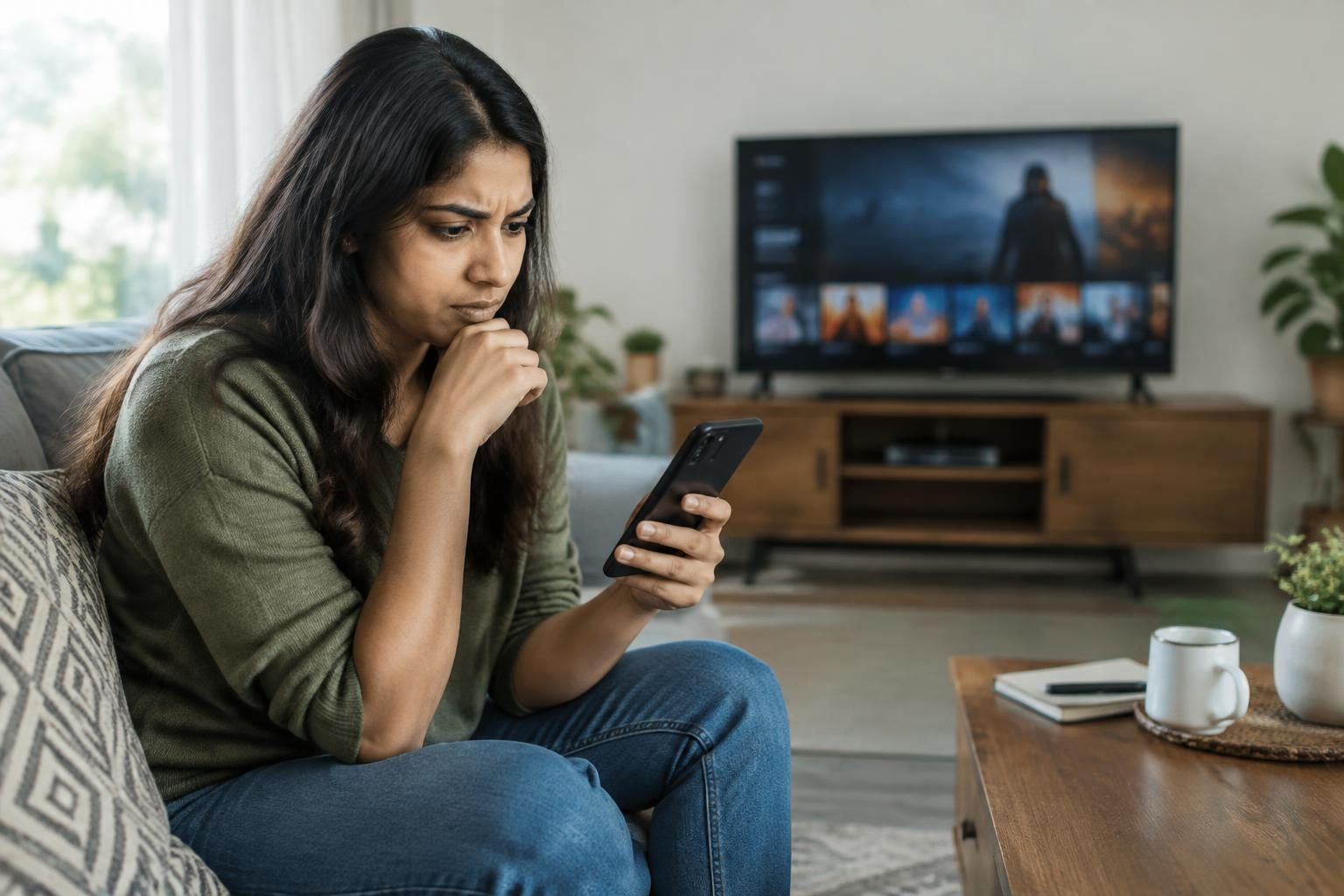
- Obtain the activation link sent by your carrier, typically via SMS or email.
- Sign in using the Google Account or OTT platform account intended for the subscription to ensure proper linkage.
- Carefully review the subscription plan details presented before completing activation.
- Follow any app-specific instructions; for example, YouTube Premium activation via carrier billing requires using the YouTube app.
- Complete the activation process; charges will then be billed through your mobile plan.
These steps are consistent with official guidance for Google One subscriptions via mobile operators and YouTube Premium carrier billing setup.
What should I do if my activation link for an OTT subscription through a mobile plan is expired or invalid?
Expired or invalid activation links typically indicate the link has timed out or was already used.
- Verify whether the activation link is expired or previously used before retrying.
- Request a new activation link from your mobile carrier or OTT provider's support team.
- Follow any troubleshooting instructions provided to resolve link errors and avoid using outdated URLs.
Google One help references activated link expiration as a common issue and recommends contacting providers for a fresh link (Google One Help).
Why is my OTT subscription missing after activation through my mobile plan?
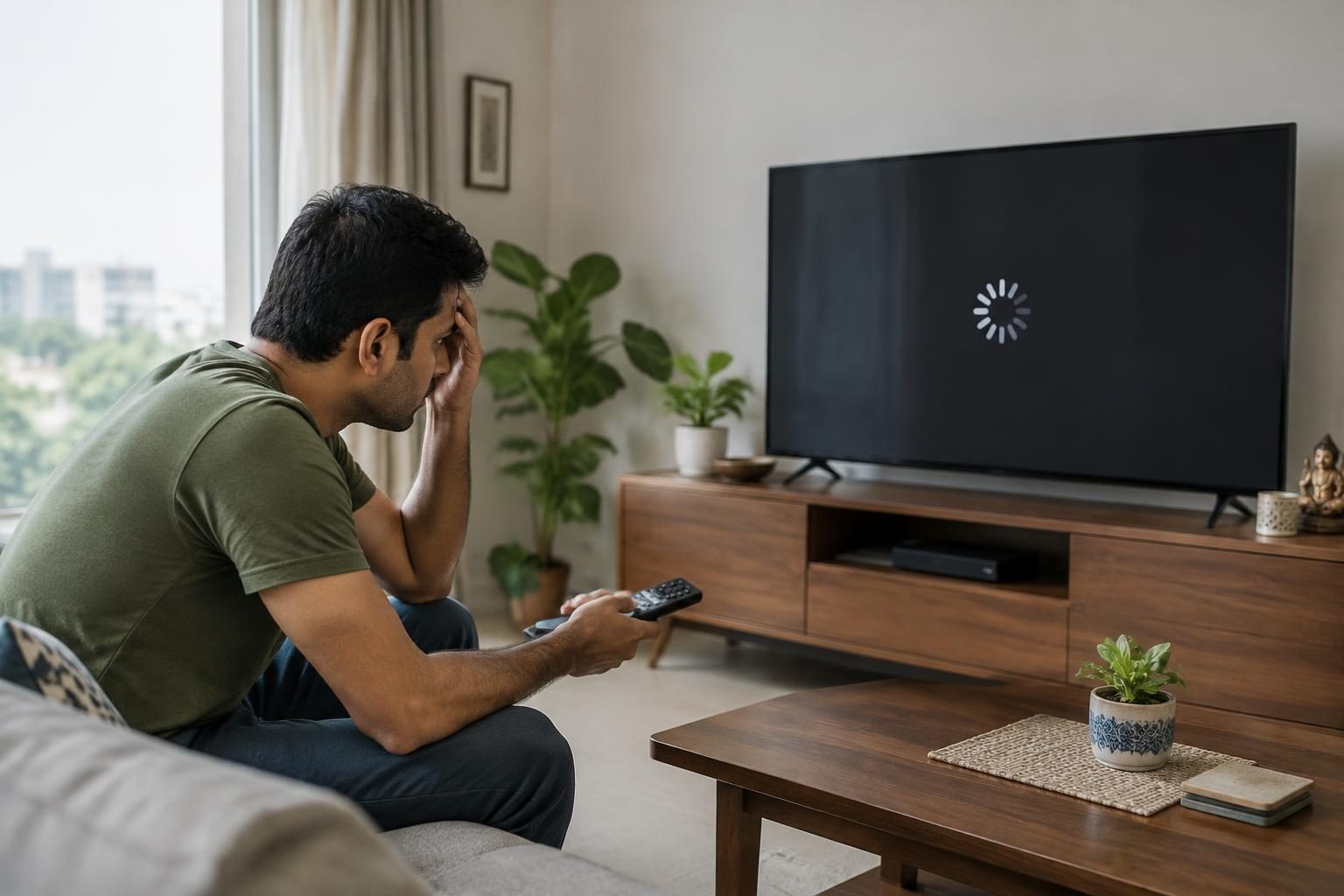
A missing subscription after activation is often due to account mismatches, conflicting subscriptions, or billing issues.
- Ensure you are signed into the exact Google Account or OTT platform account linked at activation.
- Check other associated accounts, including family or shared accounts, that may have the subscription.
- Cancel existing subscriptions like Google One memberships linked to your account before activating new ones through your carrier.
- Verify your subscription status and carrier billing confirmation within the OTT app or account settings.
These suggestions align with Google One and Google Play Help for managing subscription conflicts.
How can I resolve payment issues when subscribing to OTT platforms via mobile carrier billing?
Payment failures can prevent successful subscription activation or cause interruptions.
- Confirm your mobile carrier payment method is current and without restrictions.
- Maintain a stable mobile network connection as it is required for direct carrier billing transactions.
- Restart your device and attempt subscription activation again through the OTT app.
- If payment issues continue, contact your carrier's customer support to address billing disputes or blocks.
These steps reflect advice from Google Play and YouTube Help on resolving carrier billing problems.
Are there specific considerations for dual SIM devices when activating OTT subscriptions through mobile plans?
Dual SIM devices may face carrier billing issues if the correct SIM is not configured properly.
- Ensure the SIM card linked to your mobile plan is placed in the primary SIM slot for proper carrier billing support.
- Review your device’s dual SIM management settings to confirm billing works with the chosen SIM.
- Restart your device after inserting the correct SIM to refresh network signals and carrier billing functionality.
YouTube’s support advice mentions similar troubleshooting for dual SIM-related billing issues (YouTube Help).
Do I need to cancel an existing OTT or Google One subscription before activating a new one via my mobile plan?
It is recommended to cancel any existing Google One or OTT subscriptions linked to your account prior to activating a new subscription through your mobile plan.
Multiple active subscriptions on the same account or overlapping services can prevent activation or cause the subscription not to appear.
According to Google One Help, cancelling prior memberships is necessary before switching to a carrier-billed subscription.
Who should I contact if I face issues with in-app content despite successful activation through a mobile plan?
- Check your active subscription status in the OTT platform’s app or account settings.
- Contact your mobile carrier’s support for billing or activation verification questions.
- Reach out to the OTT platform’s customer support team for assistance with device compatibility or content access problems.
Frequently asked questions
How do I verify that my OTT subscription is linked to the correct Google Account?
Open the OTT app or Google Play Store on your device and check the account you are signed in with. Viewing subscription status in app or account settings helps confirm linkage. If unsure, try signing in with other Google Accounts you use to identify where the subscription resides.
Can I use OTT subscriptions linked to my mobile plan on multiple devices?
OTT subscriptions generally allow usage on multiple devices once linked to your account, but device limits and simultaneous streams vary by provider. Review your OTT service’s terms for specific device usage policies.
What steps can I take if direct carrier billing for an OTT subscription does not work on my mobile device?
Confirm that the SIM card with the mobile plan is in the primary SIM slot. Ensure you have a strong network connection and that your carrier supports direct carrier billing. Restart your device and try again through the official OTT app. Contact your carrier if problems persist.
Are there regional or carrier-specific nuances for OTT subscription activation in India?
Activation methods and carrier billing support vary among Indian mobile operators and OTT platforms. Follow the specific instructions provided by your carrier and OTT provider. This article provides general guidance; consult your local provider for precise regional details.
What should I do if my device is rooted or customized and OTT subscriptions won’t activate through my mobile plan?
Rooted or heavily customized devices may face activation issues. Using a standard device or contacting OTT customer support for help is advisable. Results may vary depending on device modifications.
The bottom line
Activating an OTT subscription via your mobile plan involves using the official activation link from your carrier and signing into the correct OTT or Google account. Reviewing subscription details and following app-specific instructions are key to smooth activation. Common issues like expired links, missing subscriptions, payment problems, or dual SIM conflicts can usually be resolved by following carrier and platform support guidance. When difficulties persist, reaching out to your mobile carrier or OTT service provider is the best course of action.
For additional related information, consider our detailed comparison of Smart TVs and streaming sticks for OTT or our guide on checking who bills your OTT subscription auto-renewal. If network issues affect your mobile activations, activation and connection fixes for eSIM problems may provide useful insights.
Sources & methodology
We reviewed the primary references below when checking the time-sensitive facts in this guide. Product features, prices, rules and eligibility can change, so confirm important details with the linked authority before acting.
- Fix problems with subscriptions - Computer - Google Play Help support.google.comThis page provides troubleshooting steps for issues related to subscriptions on Google Play. It covers scenarios such as missing subscriptions, content restrictions, in-app content issues, and payment problems. For instance, if a subscription is missing, users are advised to ensure they are signed in to the correct Google Account and to check other email accounts or family members' accounts. In cases of payment issues, users are encouraged to update their payment methods to avoid disruptions. The page also offers guidance on contacting app developers for in-app content issues and provides steps to cancel subscriptions if the app has been uninstalled. These instructions are applicable to users experiencing subscription-related problems on their computers. ([support.google.com](https://support.google.com/googleplay/answer/9818348?hl=en-EN&utm_source=openai))
- Troubleshoot issues paying through your mobile provider (direct carrier billing) - YouTube Help support.google.comThis support page offers troubleshooting tips for users encountering issues with purchases billed through their mobile phone carrier. It suggests ensuring a connection to the carrier network, using the YouTube app instead of a mobile browser or computer, and restarting the device. Additional tips include verifying the use of a personal account, confirming the device is not rooted, and ensuring the correct SIM card is in slot 1 for dual SIM devices. These steps are designed to help users resolve payment issues related to direct carrier billing on YouTube. ([support.google.com](https://support.google.com/youtube/answer/9971971?hl=en-MP&utm_source=openai))
- Learn about third-party Google One subscriptions - Google One Help support.google.comThis page explains how to activate and manage Google One subscriptions obtained through third-party service providers, such as mobile phone operators. It outlines the process of receiving a unique activation link from the provider, signing in to the Google Account intended for the subscription, reviewing the plan details, and activating the plan. The page also addresses potential activation link errors, such as expired links or links already in use, and provides guidance on what to do in these situations. Additionally, it advises users to cancel any existing Google One memberships before activating a new plan through a third-party provider to avoid conflicts. ([support.google.com](https://support.google.com/googleone/answer/15801606?hl=en-AU-u-fw-mon-mu-celsius&utm_source=openai))