Monitor for Coding and Reading: Text Clarity, Size and Resolution
The best monitor for coding and reading features a 24-27 inch 1440p IPS panel with RGB subpixel layout and proper scaling settings for clear, sharp text and reduced eye strain.
Contents
- What screen resolution is best for coding and reading text clearly?
- How does panel type affect text clarity on a monitor?
- Why do fonts sometimes appear blurry and how can I fix this?
- How does the subpixel layout impact text sharpness on OLED monitors?
- What is the ideal screen size for coding and reading?
- How can I adjust scaling settings to improve text size without losing clarity?
- What ergonomic and eye comfort considerations should I keep in mind for coding and reading?
- Are there cost-effective monitor options for coding and reading in the Indian market?
- Frequently asked questions
- The bottom line
- Sources & methodology
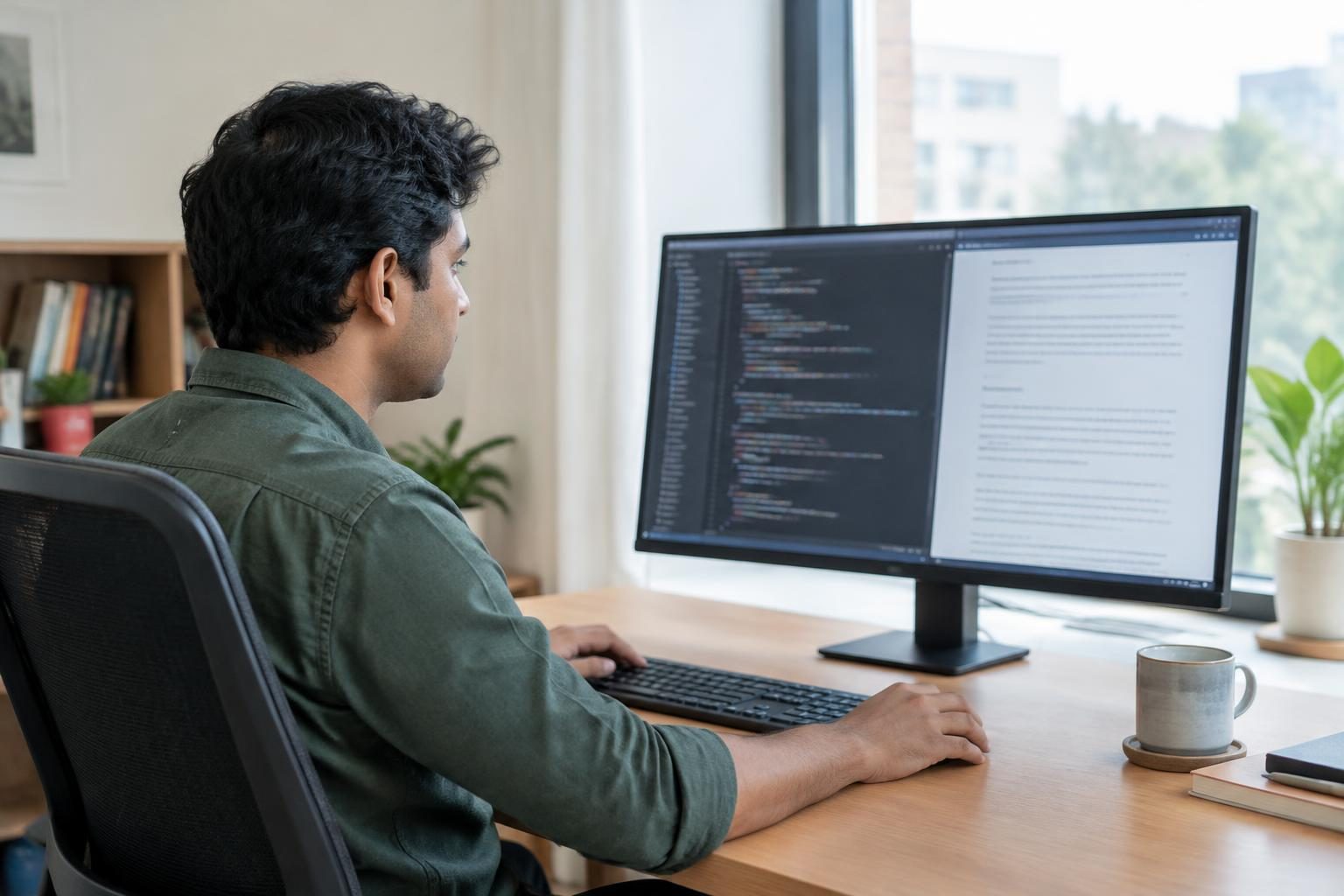
The best monitor for coding and reading combines a native 1440p (2560 x 1440) resolution IPS display with an RGB subpixel layout and a screen size between 24 and 27 inches. Properly configured scaling settings ensure text appears sharp and clear, minimizing eye strain and blurriness during long coding or reading sessions.
What screen resolution is best for coding and reading text clearly?
A 1440p resolution (2560 x 1440 pixels) is recommended because it produces noticeably sharper text than 1080p, especially on medium to large screens. Higher resolutions increase pixel density, reducing visible pixels and making code or reading material easier on the eyes. It is essential to use the monitor's native resolution, typically its highest supported, to prevent blurry or distorted fonts. According to Microsoft support, setting your display to its native resolution is crucial for clear text presentation (source).
How does panel type affect text clarity on a monitor?
Panel type significantly impacts text appearance and reading comfort. IPS (In-Plane Switching) panels offer excellent color accuracy and wide viewing angles, ensuring consistent text clarity from various positions. VA (Vertical Alignment) panels have higher contrast ratios but narrower viewing angles, which can cause shifts in brightness and color when viewed off-center. OLED monitors boast superior contrast but typically use PenTile or Diamond Pixel subpixel layouts, which often reduce text sharpness due to their non-standard RGB subpixel arrangements (source, source).
Why do fonts sometimes appear blurry and how can I fix this?
Blurry fonts often result from setting the display to a resolution other than its native one, which forces the operating system to upscale or downscale the image and softens text edges. To fix this, always select your monitor's native resolution in display settings. Adjusting Windows scaling options allows you to increase text size on high-DPI monitors without lowering resolution, preserving sharpness. Also, keeping your graphics drivers up to date helps prevent issues related to resolution or scaling changes (source).
How does the subpixel layout impact text sharpness on OLED monitors?
Most OLED panels employ PenTile or Diamond Pixel subpixel layouts instead of the traditional RGB stripe. These layouts can reduce text sharpness because font rendering relies on distinct RGB subpixels to shape characters crisply. However, some OLED monitors like the LG UltraFine OLED Pro series use an RGB subpixel layout, resulting in significantly improved text clarity compared to typical OLED PenTile arrangements (source).
What is the ideal screen size for coding and reading?
A monitor between 24 and 27 inches strikes a good balance for coding and reading. This size provides ample space to view multiple windows or lines of code without overwhelming desk space. Smaller screens may make text feel cramped, while larger screens require higher resolution to prevent image softness or pixelation.
How can I adjust scaling settings to improve text size without losing clarity?
Windows 10 and 11 include scaling options that increase text size on high-DPI displays without sacrificing clarity. To optimize readability:
- Open Display Settings in Windows.
- Adjust the scaling percentage (commonly 125% or 150%) to find a comfortable balance between size and sharpness.
- Apply the changes and evaluate text appearance in your coding or reading applications, refining as needed.
This approach prevents tiny, hard-to-read fonts while maintaining crisp, sharp text (source).
What ergonomic and eye comfort considerations should I keep in mind for coding and reading?
Long coding or reading sessions benefit from monitors with blue light reduction features or flicker-free technology to lessen eye fatigue. Match monitor brightness to the surrounding ambient light rather than using maximum brightness. Position your monitor roughly an arm’s length away and at eye level to maintain ergonomic posture and prevent neck or eye strain.
Are there cost-effective monitor options for coding and reading in the Indian market?
In India, mid-range IPS monitors with native 1440p resolution are practical choices for coding and reading tasks. Monitor prices can vary significantly based on brand and features. While sales events like the Flipkart Big Billion Days may provide opportunities to purchase at reduced prices, specific discounts and availability fluctuate, and verified information should be confirmed when shopping. Prioritize selecting monitors with native resolution and quality IPS panels to ensure text clarity over extra, non-essential features. For live offers during sales, consider sources such as the Flipkart Big Billion Days Sale 2026 listings (source).
Frequently asked questions
What is the best screen resolution for coding and reading text clearly?
A 1440p (2560 x 1440) resolution on a 24 to 27-inch monitor provides sharp, clear text and reduces eye strain during long coding and reading sessions.
How does screen resolution affect text clarity on monitors?
Higher resolutions increase pixel density, resulting in sharper, more defined text and images. Using a monitor's native resolution avoids blurring caused by scaling.
Why do fonts appear blurry on my monitor and how can I fix it?
Blurriness is usually caused by using non-native resolutions or improper scaling settings. Fix this by adjusting to the native resolution, fine-tuning scaling options, and updating graphics drivers if necessary.
What monitor panel types are best for sharp text clarity in coding and reading?
IPS panels are generally the best for coding and reading due to superior color accuracy, consistent brightness, and wide viewing angles that maintain text clarity.
How can I adjust scaling settings to improve text size without losing clarity?
Use Windows display scaling (e.g., 125-150%) to enlarge text while keeping it sharp by not lowering resolution.
The bottom line
For coding and reading, a 24 to 27-inch monitor with native 1440p resolution on an IPS panel and an RGB subpixel layout offers optimal text clarity and comfort. Proper scaling and ergonomic setup further enhance long-term usability by reducing eye strain. When buying, prioritize native resolution and panel quality. Indian consumers can find suitable options in mid-range monitors, with occasional sales offering opportunities for savings (Flipkart Big Billion Days Sale 2026).
Explore related advice on Big Billion Days laptop deals relevant for Indian users and Understanding technology shopping trends in India 2026 for better purchasing decisions.
Sources & methodology
We reviewed the primary references below when checking the time-sensitive facts in this guide. Product features, prices, rules and eligibility can change, so confirm important details with the linked authority before acting.
- Change your screen resolution and layout in Windows support.microsoft.comThis official Microsoft Support page provides detailed instructions on adjusting screen resolution and layout in Windows 10 and 11. It emphasizes the importance of setting the display to its native resolution for optimal text clarity. The page also offers guidance on scaling settings to enhance text readability, particularly on high-DPI devices. Additionally, it addresses potential issues with screen resolution changes and suggests updating graphics drivers if unexpected changes occur.
- What you need to know about OLED monitors, PenTile, and text clarity www.pcworld.comThis PCWorld article delves into the impact of OLED monitor technologies, specifically PenTile and Diamond Pixel layouts, on text clarity. It explains how non-RGB subpixel arrangements can lead to less sharp text rendering. The article also discusses the challenges Windows faces with non-RGB subpixel layouts and suggests that users consider monitors with RGB subpixel layouts, such as LG's UltraFine OLED Pro series, for improved text clarity.
- Monitor buying guide: How to choose your next display www.pcworld.comThis PCWorld guide offers comprehensive advice on selecting monitors based on various factors affecting text clarity. It covers panel types like IPS, VA, and OLED, detailing their strengths and weaknesses in terms of color accuracy, contrast, and viewing angles. The guide also emphasizes the importance of resolution, recommending 1080p for general use and 1440p or higher for sharper text. Additionally, it discusses refresh rates and response times, highlighting their relevance for gaming and professional applications.
- What Is 1440p? QHD/UWQHD Resolution Explained www.tomshardware.comThis Tom's Hardware article explains the 1440p resolution, also known as QHD or WQHD, which measures 2560 x 1440 pixels. It compares this resolution to 1080p and 4K, noting that 1440p offers a noticeable improvement in sharpness over 1080p and is more suitable for larger monitors without visible pixels. The article also discusses the benefits of higher resolutions for text clarity and the considerations for users when choosing between different resolutions.
- Fonts appear blurry in my apps support.microsoft.comThis Microsoft Support page addresses issues with blurry fonts in applications, often caused by low screen resolution. It advises users to set their monitor to its native resolution, which is typically the highest resolution the monitor can support. The page provides step-by-step instructions on how to verify or change screen resolution settings in Windows, aiming to improve text clarity by ensuring the display is set to its optimal resolution.